1.5.2 DCV
-
From the platform website, select ‘Dataspaces’ and then ‘Connections’ on the dataspace you want to connect to.
-
Select the connection method you wish to use by following either the browser or client methods below:
Warning
You may need to allow popups in your browser for the connection to succeed.
A. Connect using DCV in the browser
- Click the connection button
DCV (Browser)under the connection tab of your dataspace.

- A loading spinner will appear, and a new window will open shortly with your DCV remote connection.

B. Connect using the DCV Client
- Click the connection button
DCV (Client)under the connection tab of your dataspace.

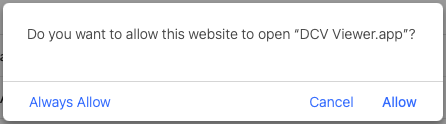
- A loading spinner will appear, and the DCV Client will open shortly. You may need to allow this connection as shown below.

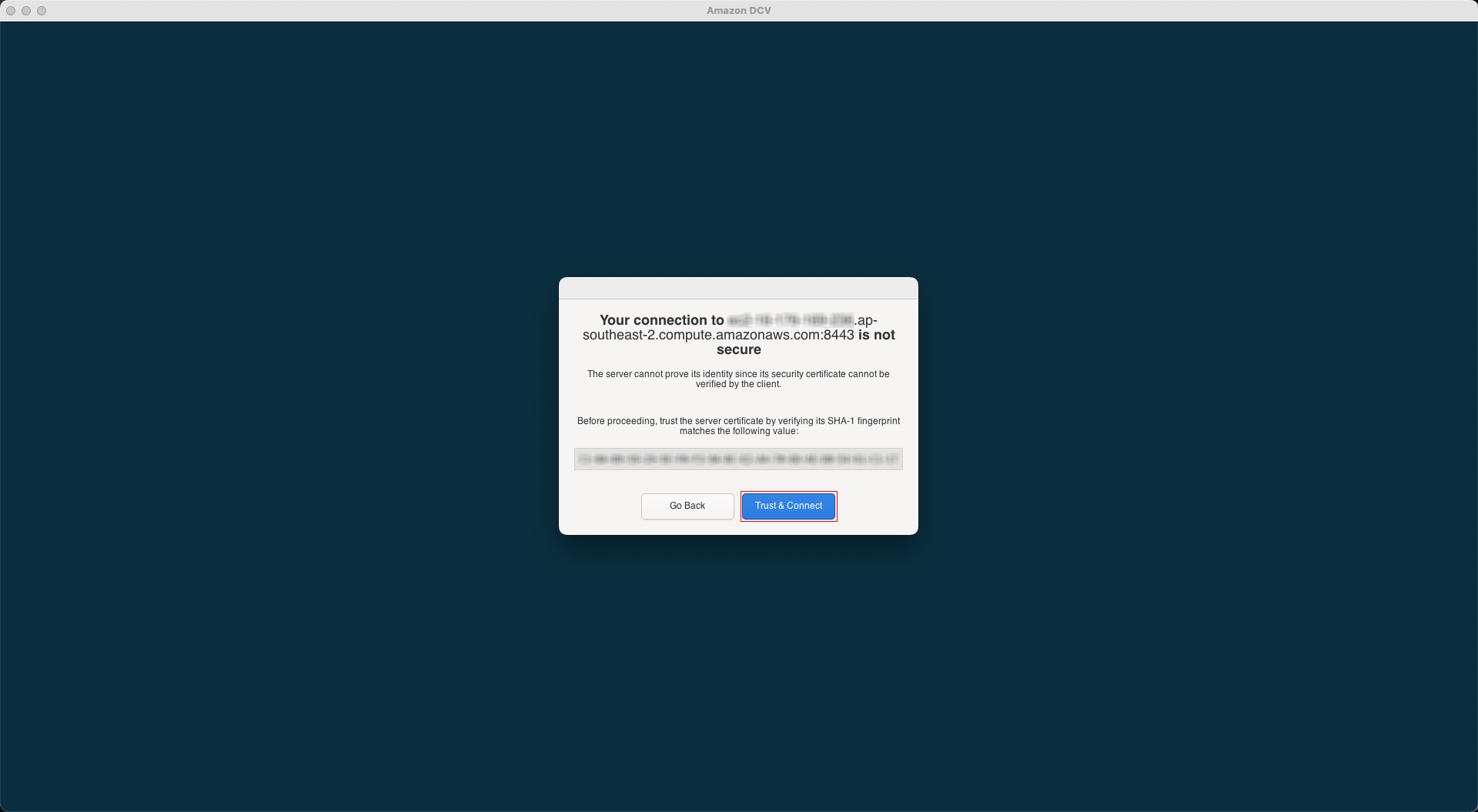
Post connection
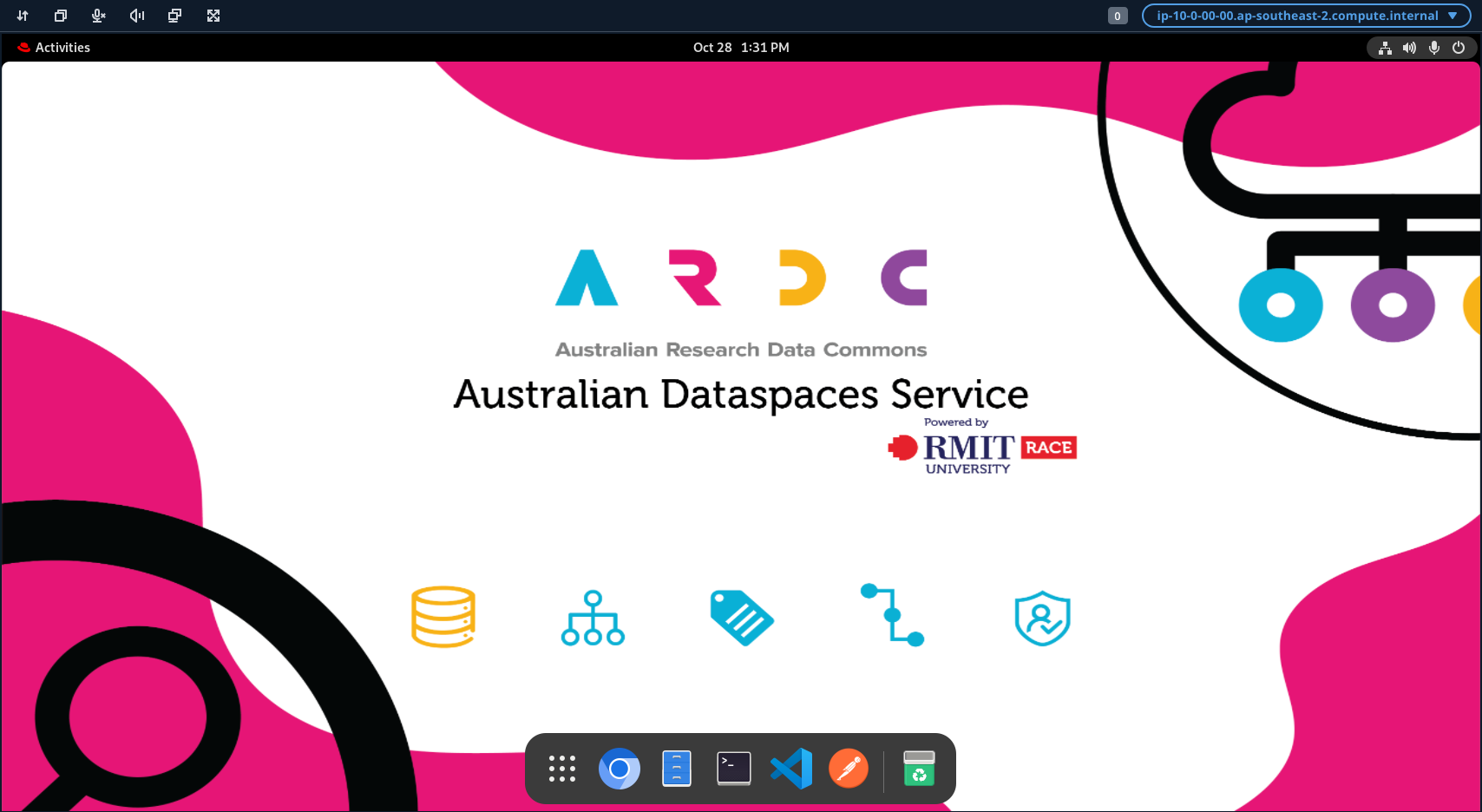
Once you are connected, you will see the following page:
-
Press “No Thanks” to close the RedHat welcome tour. (First time login only)
-
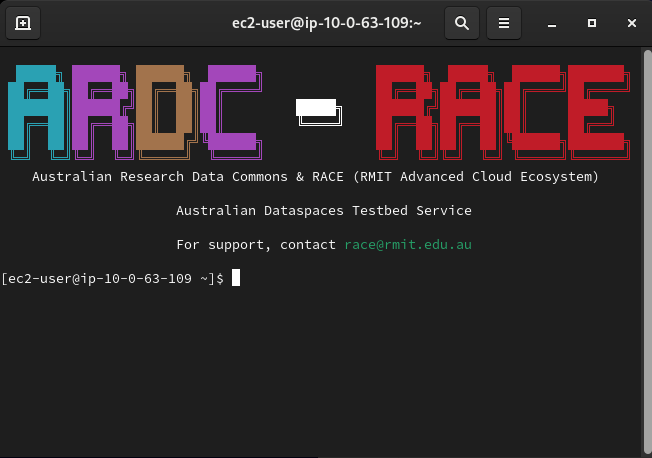
Click the Terminal icon, which is the 4th icon on your dock to access the OS terminal.