1.5 Connecting to a Dataspace
Details
If you have just completed ‘Creating a Dataspace’, proceed to step 2.
- Login to the Platform, and select the ‘Dataspaces’ option from the left menu.

- Locate the dataspace you want to connect to. If the dataspace is not currently running, select the “Start” button.
- There are a few different ways you can connect to your instance. Below is a summary of supported connection protocols:
Protocol Description/Use Case Secure Shell (SSH) This connection type allows you to connect to and issue terminal commands to the underlying Linux-based machine hosting the dataspace, similar to using a supercomputing facility or remote Linux-based workstation. Amazon Desktop Cloud Visualization (DCV) Amazon DCV is a high-performance remote display protocol similar to RDP that allows users to run graphics-intensive applications remotely with minimal latency. Web Access (HTTPS) The web access protocol is supported by testbed workspaces, and allows users to access the dataspace UI hosted on their environments HTTPS port directly. Note: If using the default demonstration environment, this page will not perform any functions. IDE Access (VSCode Server) Each testbed workspace has code-server pre-installed and running, providing developers with an easy way to develop their dataspace components straight in the web browser.
Heads up!
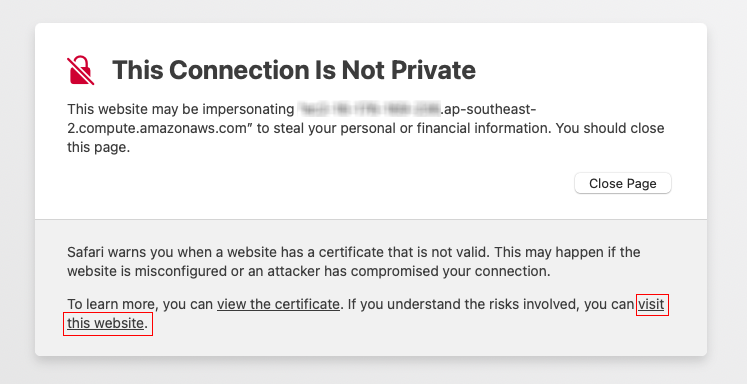
When using browser connection methods (DCV Browser, HTTPS or IDE), your browser will alert you that the connection is not private. Please choose “visit this website” to continue.
The message may differ across different clients. The warning occurs because each dataspace environment is setup to use self-signed certificates.