3.2.5 Assets
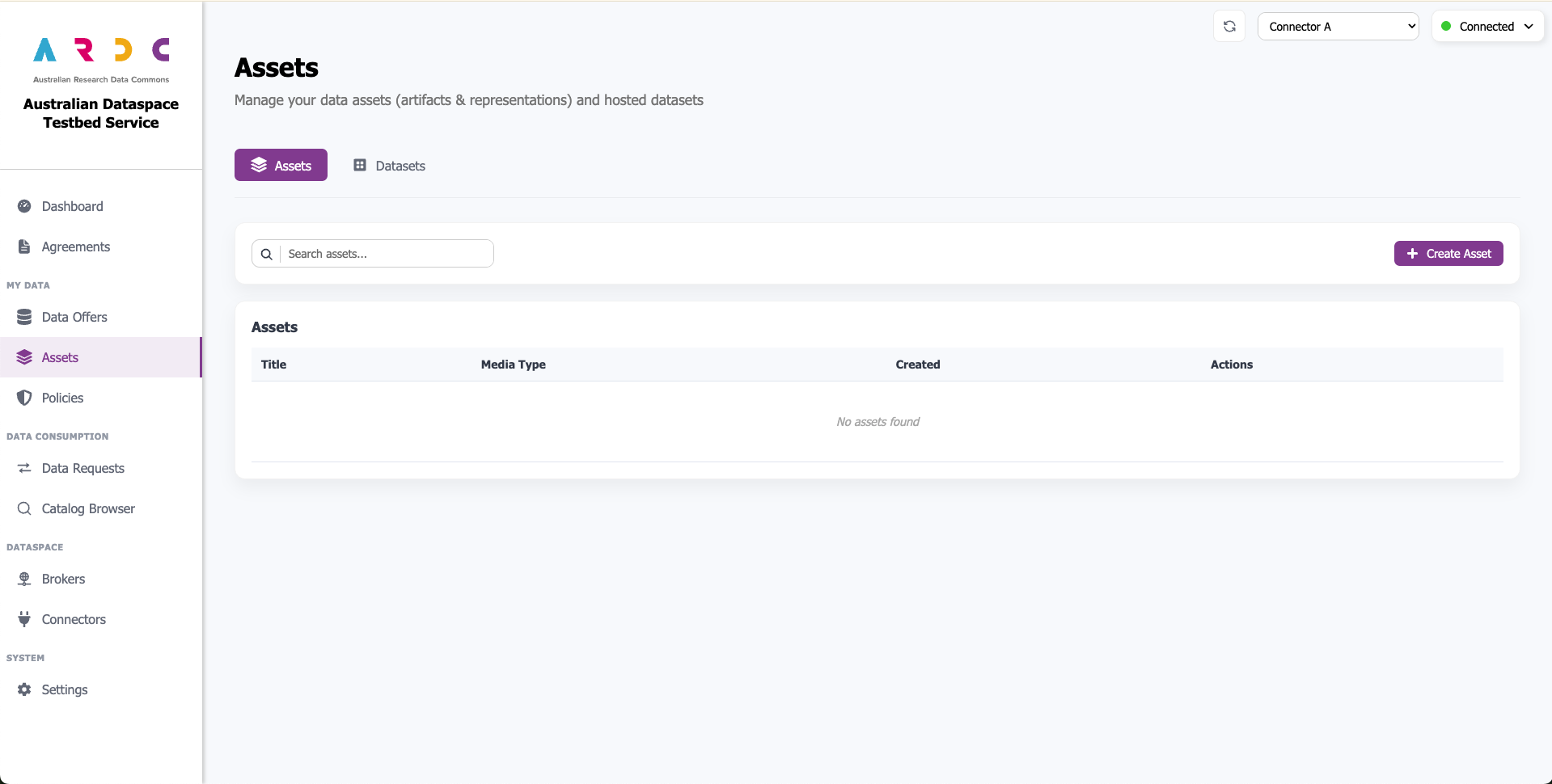
The Assets page contains two tabs:
Assets - Manage your assets, which are representations with their associated artifacts
Datasets - Manage manually uploaded datasets maintained by the dashboard and hosted directly on your server, providing a simple way to share data with other connectors
Manage Datasets
To manage your datasets, navigate to the Datasets tab.
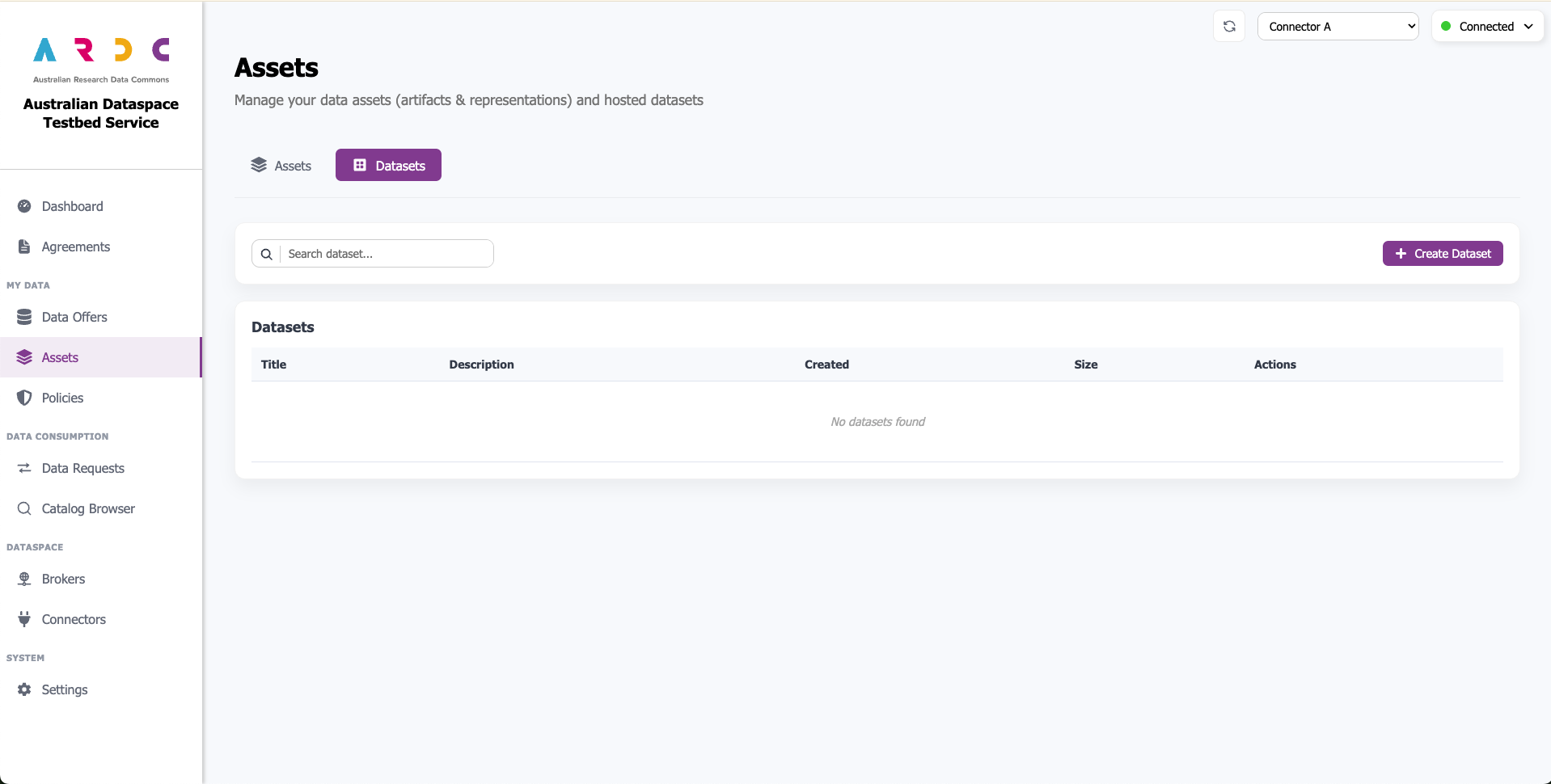
Create Dataset
Click the Create Dataset button to open a popup window.

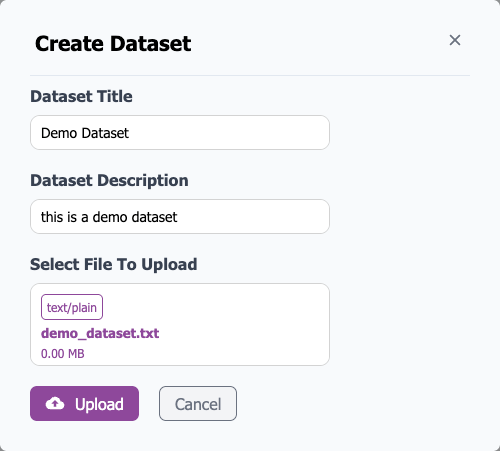
To create a new dataset, enter the dataset title and description. Click the Click to browse button under Select File To Upload, or drag and drop a file directly into the upload area.
Note
If you select a file without specifying a Dataset Title, the title will automatically populate with the uploaded file’s name.
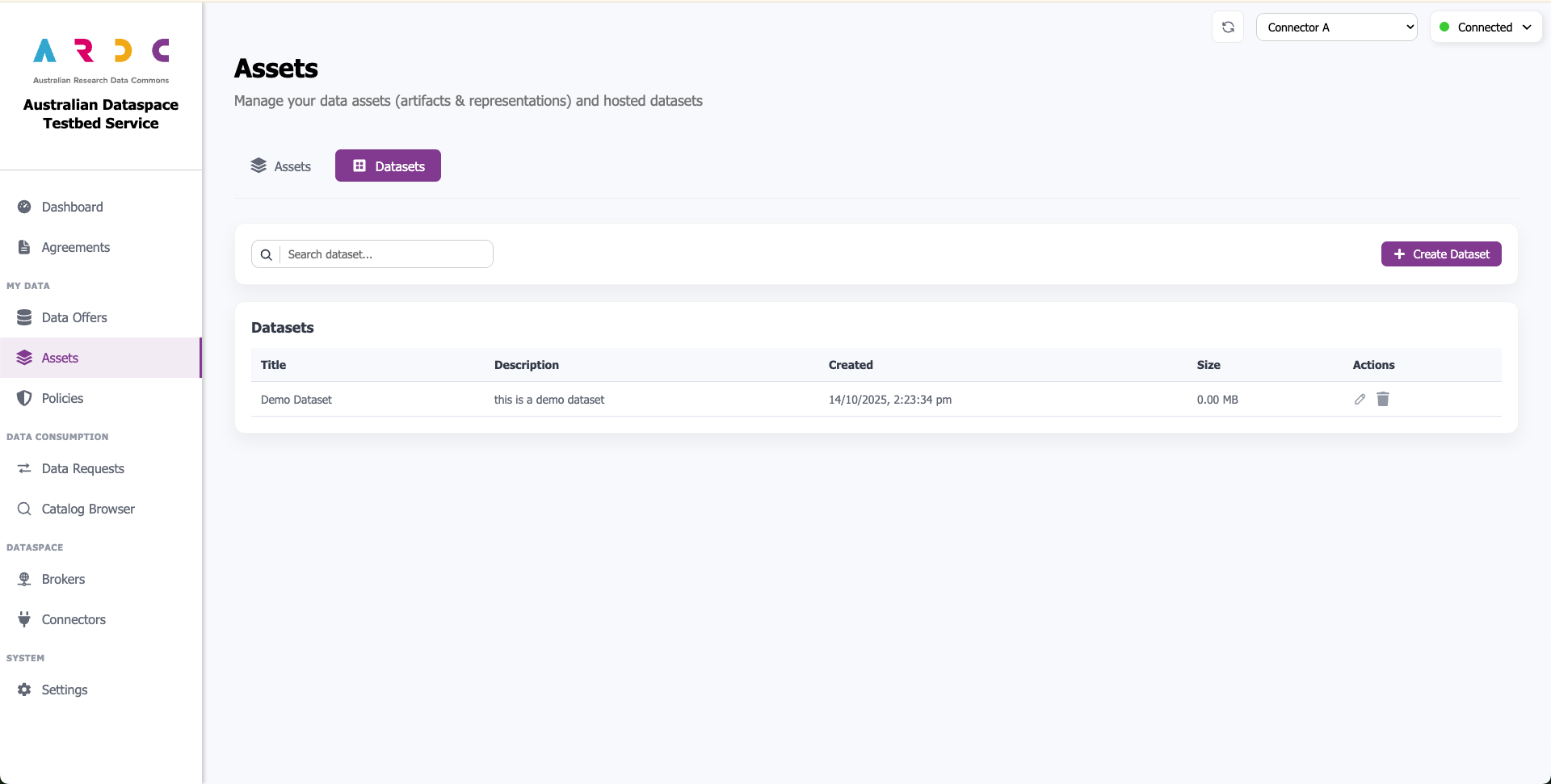
After creating your dataset, it appears in the table.
Edit Dataset
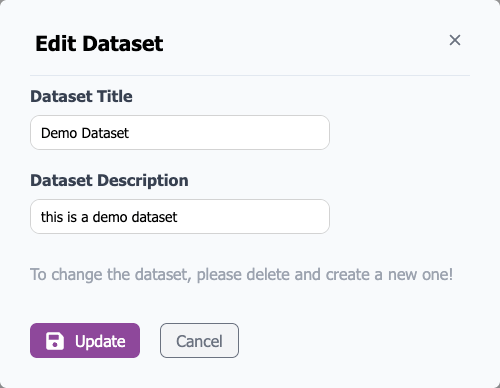
Edit a dataset by clicking the pencil icon in the Actions column. A popup window opens for editing the title and description.
Note
To update the actual file content, you must delete and recreate the dataset.
Manage Assets
To manage your assets, navigate to the Assets tab.
Create Asset
On the Assets page, click the Create Asset button to open a popup window.

The Title and Description apply to both the representation and artifact.
For the artifact, choose between three options:
-
Value - Enter your artifact value directly in the text box. Select the correct media type under the Representation section, or choose Other and enter the media type manually.
-
Access URL - Enter the access URL to your artifact if it’s hosted elsewhere. Select the correct media type under the Representation section, or choose Other and enter the media type manually.
-
My Dataset (Uploaded Dataset) - Select a previously created dataset. The media type is automatically set to match the dataset’s media type.
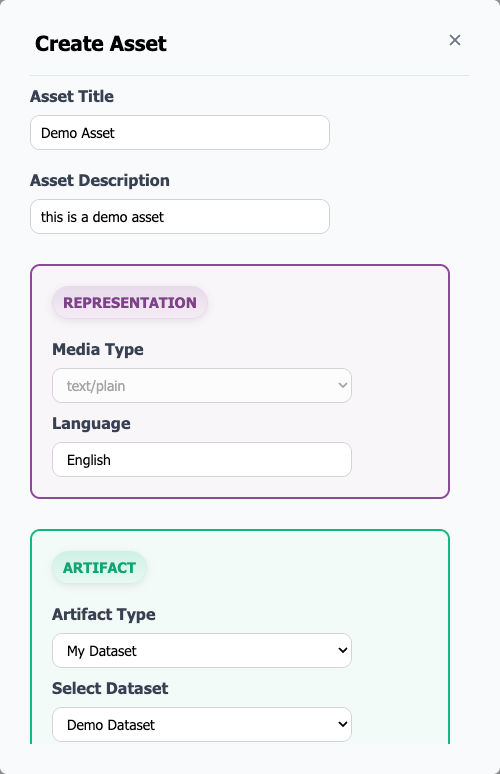
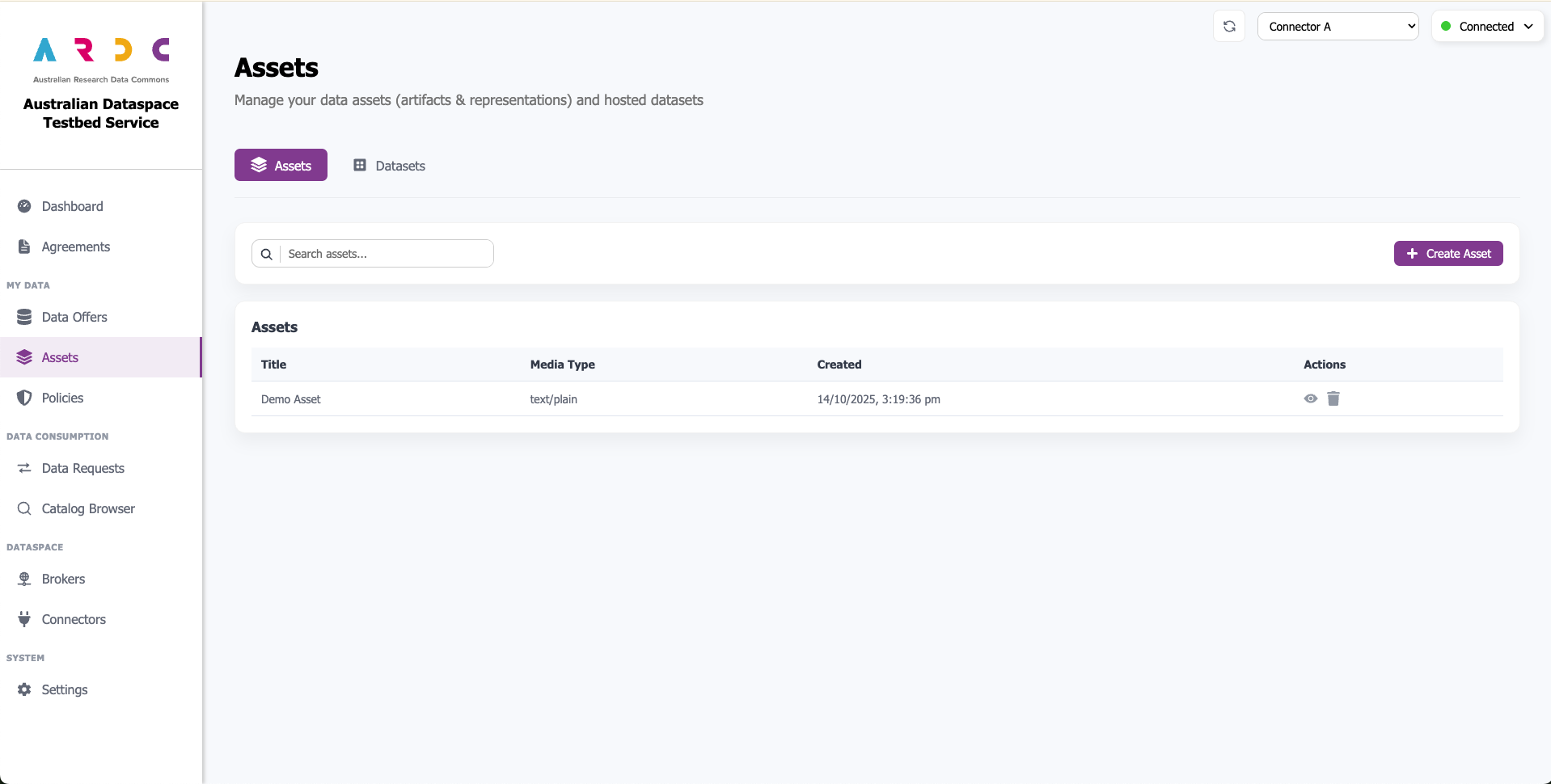
When finished, click the Submit button. Your created asset appears in the table.
View Asset
To view an asset, click the view button in the Actions column. A popup window displays the representation and its associated artifacts.
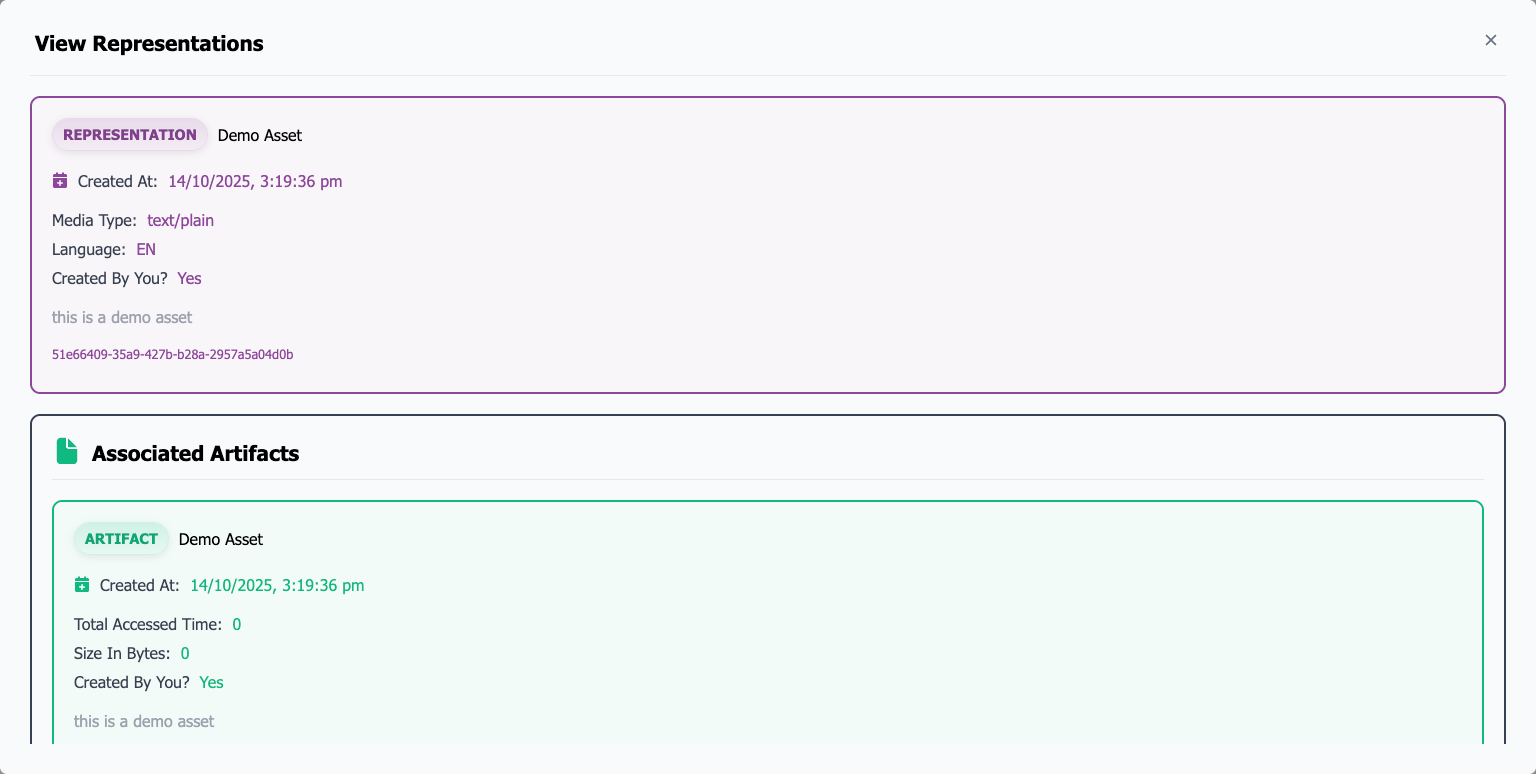
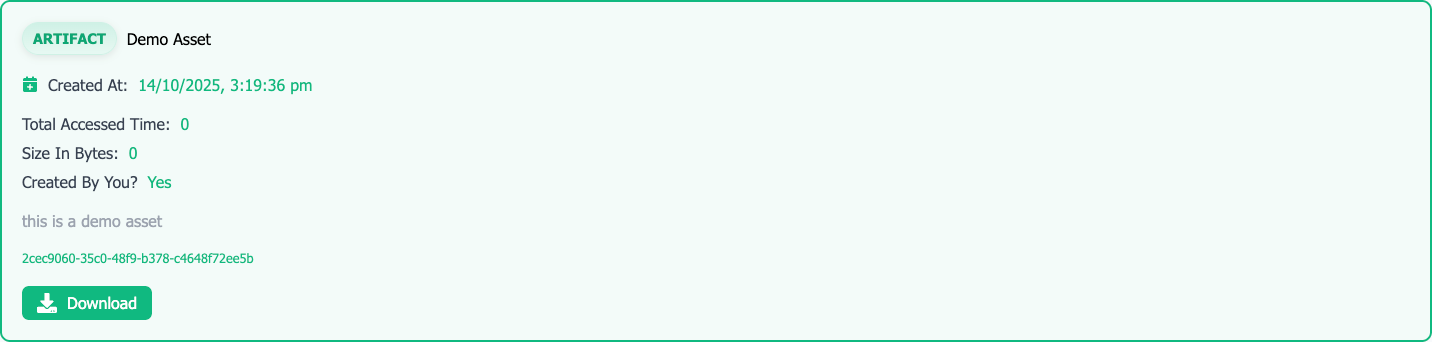
Scroll down for more information, or click on an artifact to open a new popup window showing the artifact and its associated components.
The artifact block includes a download button. Clicking it retrieves the data from the connector and initiates the download. Download speed depends on your machine’s performance and dataset size. If the download fails, the reason displays below.