2.1 Launching the Postman GUI
The following section explains how to launch the Postman GUI application in your dataspace environment. This is essential for running the built-in test sequences, as well as writing your own data exchange workflows. The Postman GUI is a prerequisite to further sections throughout this documentation.
Prerequisites:
- You need to be connected via DCV in order to use the Postman GUI.
- Postman GUI requires an account to run tests. If you do not have an account, please register at the official Postman website
Log in to your account
-
Connect to your dataspace via DCV
-
Click Show Applications (1st icon):

- Open the Postman application by selecting this icon:
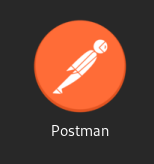
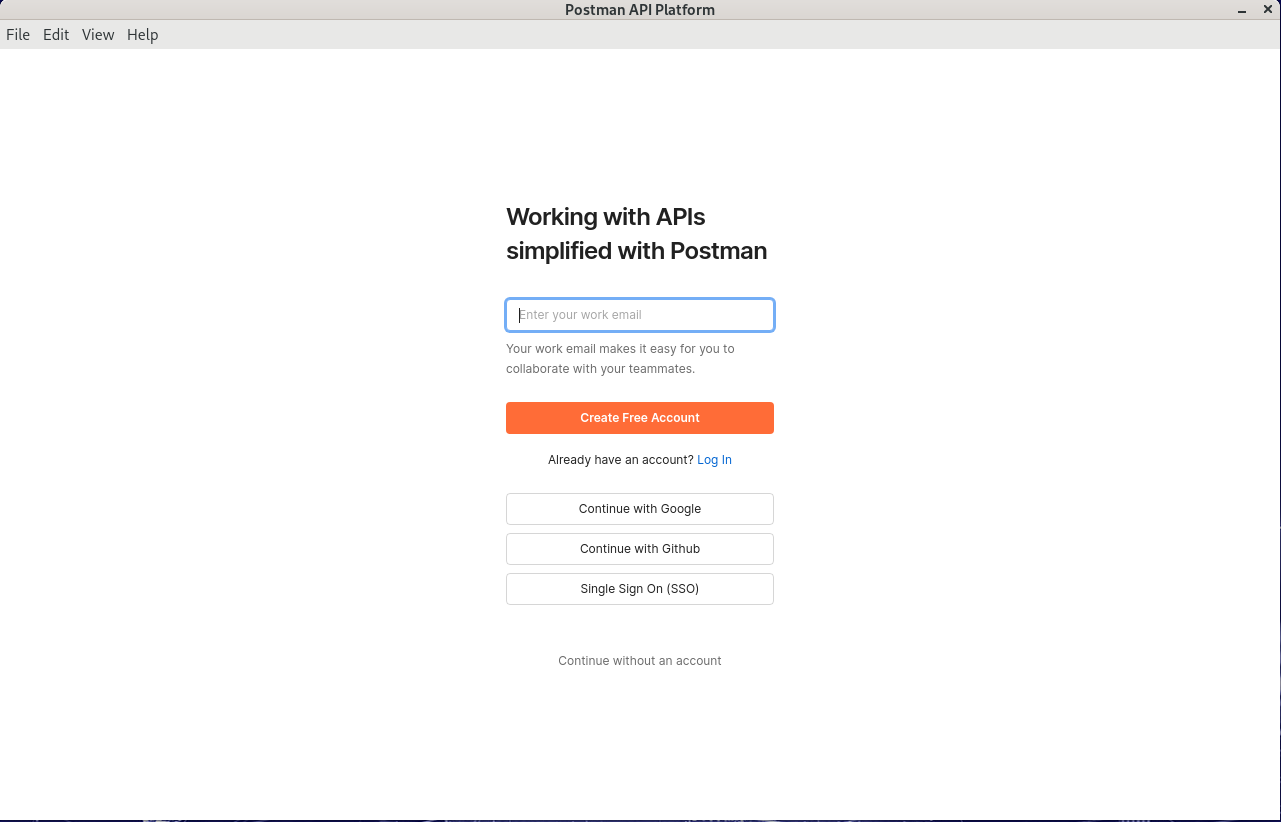
- Log in to your Postman account (you can create an account using the link at the top of this page):
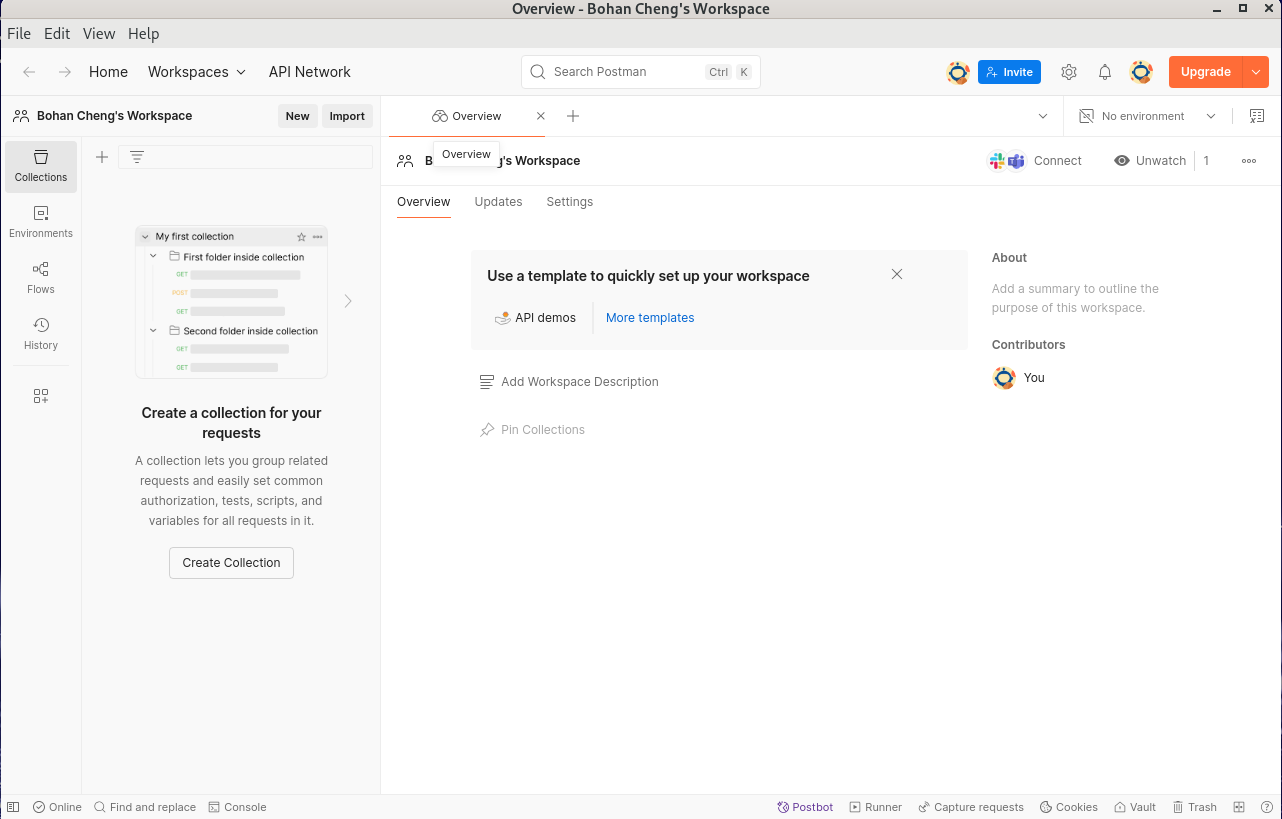
After logging in to your Postman account, the Postman dashboard will appear.
Import Scripts
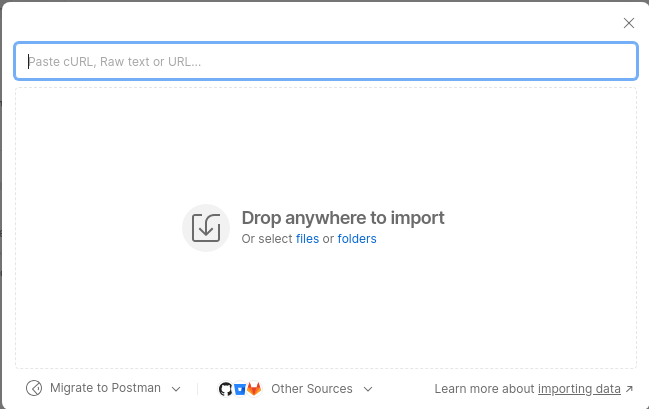
- Import any Postman script either by dragging and dropping the file to Postman directly, or via the import function:
File > Import > select filesfrom the top menu bar.
Execute a Postman test
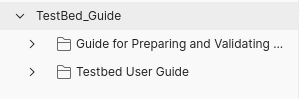
Any imported Postman scripts can be found in the left panel:
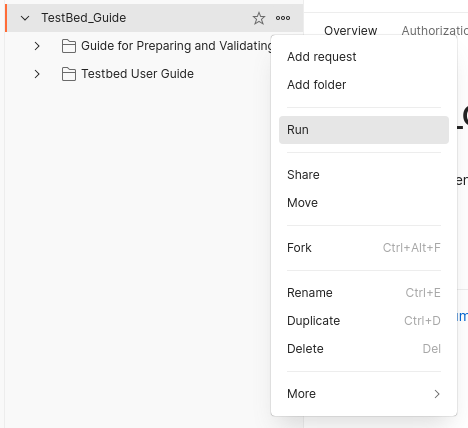
- Single-click any Postman script, then select the three dots (⋯) to the right and select “Run”:
- To execute the Postman script, select the orange “Run Testbed_Guide” button.