3.3.2 Request a Data Offer
This guide demonstrates how to discover and request data from other connectors in your dataspace. You will search metadata brokers for available resources, review their details and policies, and submit requests to access data.
Before you begin!
Ensure you have registered the offer you wish to consume to a metadata broker first. You can follow the Creating a Data Offer guide to do this.
To request a resource from other connectors, follow the steps below:
-
Search for Resources
Begin by navigating to the Catalog Browser page. For more details about this component, refer to the Catalog Browser documentation.
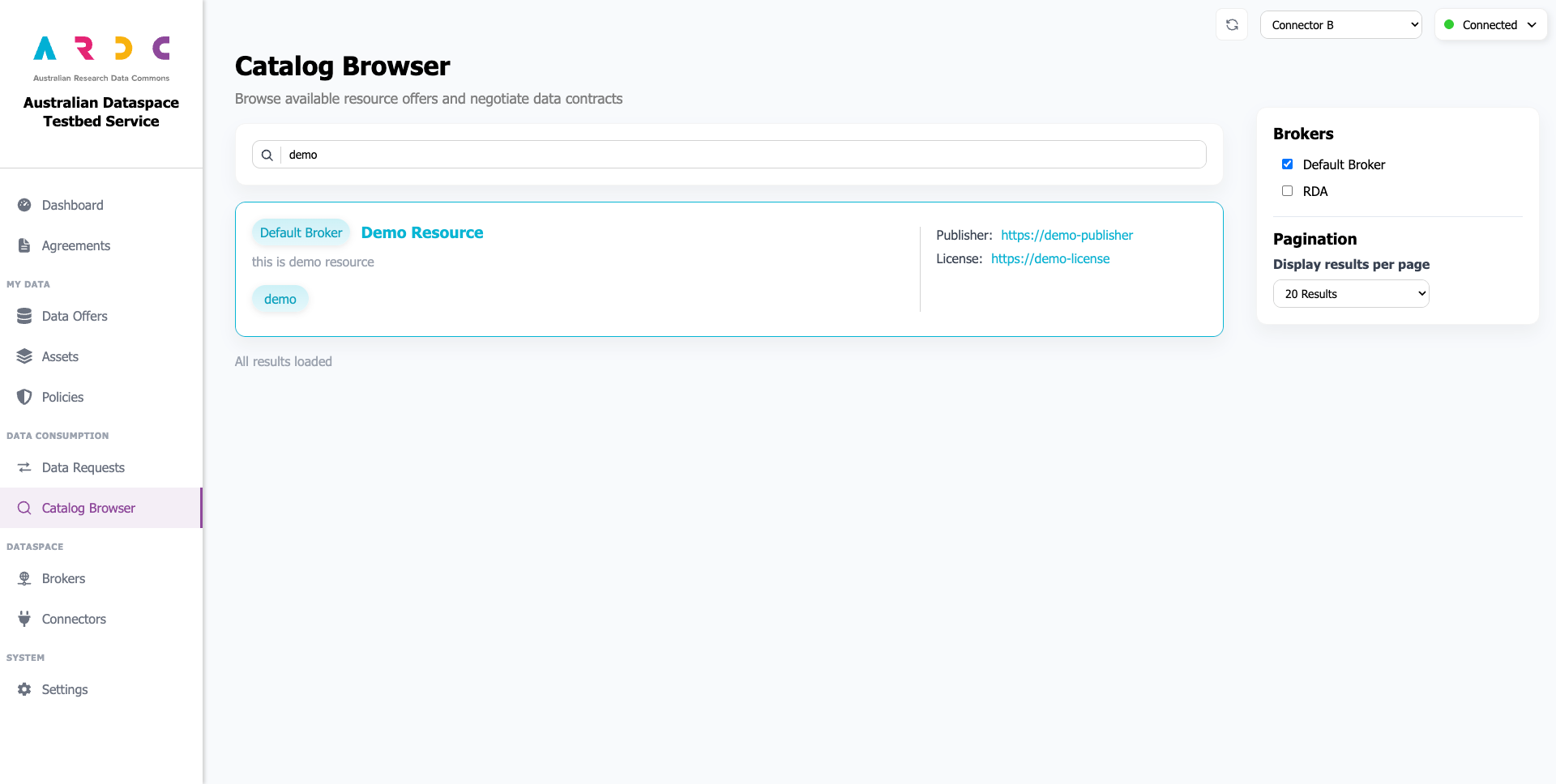
First, select which brokers you want to search in the list of brokers on the right. All brokers are selected by default, but you can narrow your search by deselecting specific brokers. You can also adjust your pagination settings before searching to show more/less results at a time. If you have a valid RDA API key set in the dashboard settings, you will also have the option to include results from Research Data Australia.
Next, type keywords in the search bar to begin your search. The search starts automatically when you finish typing. The “Search” icon changes to a “Loading” icon until results load or no results are found.
Results will display one by one, each with a pill tag indicating which broker the result comes from.
-
Review Resource Details
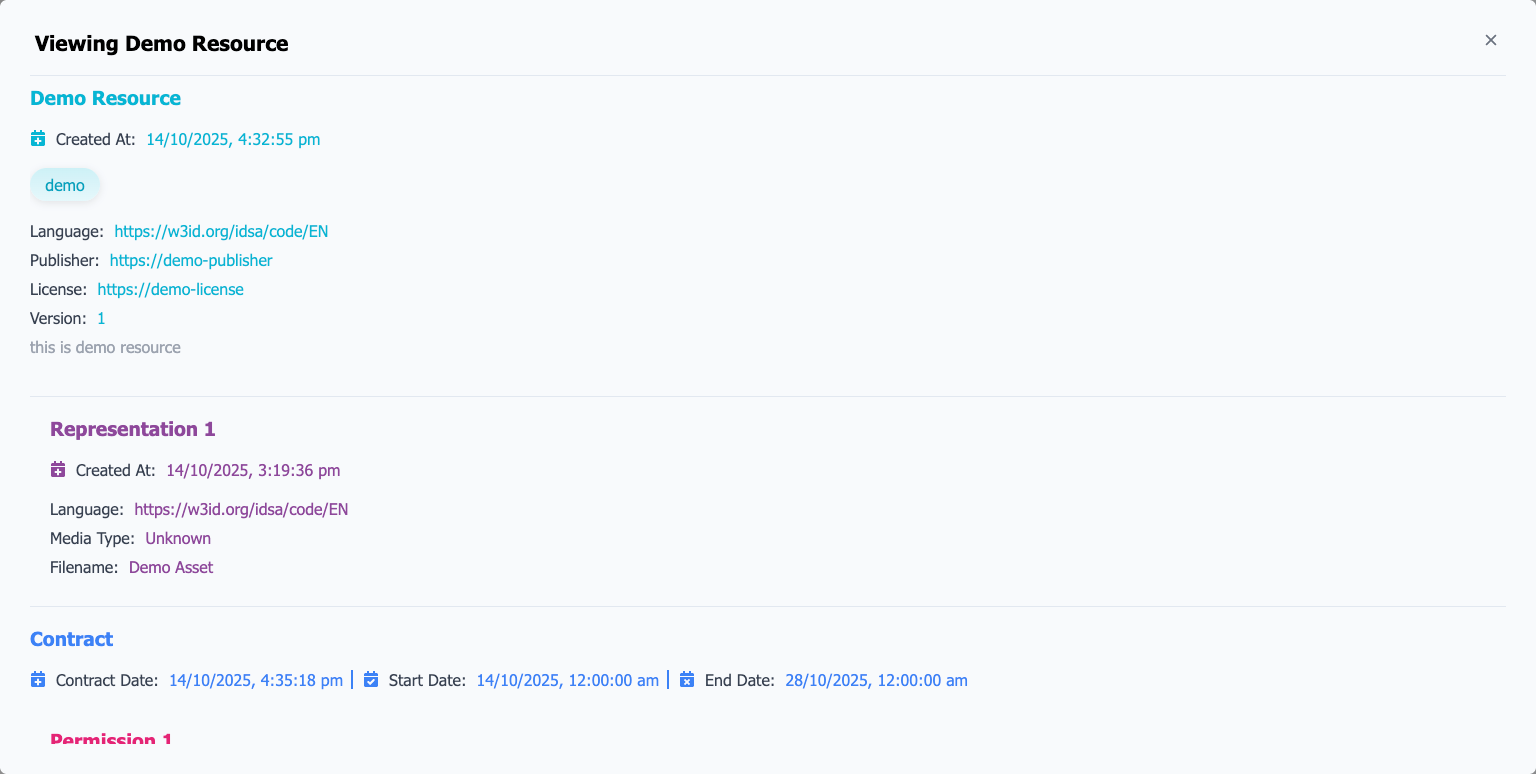
Once you’ve found a resource of interest, select it to display the popup window with detailed information, including any associated representations, contract, and rules.
-
Request the Resource
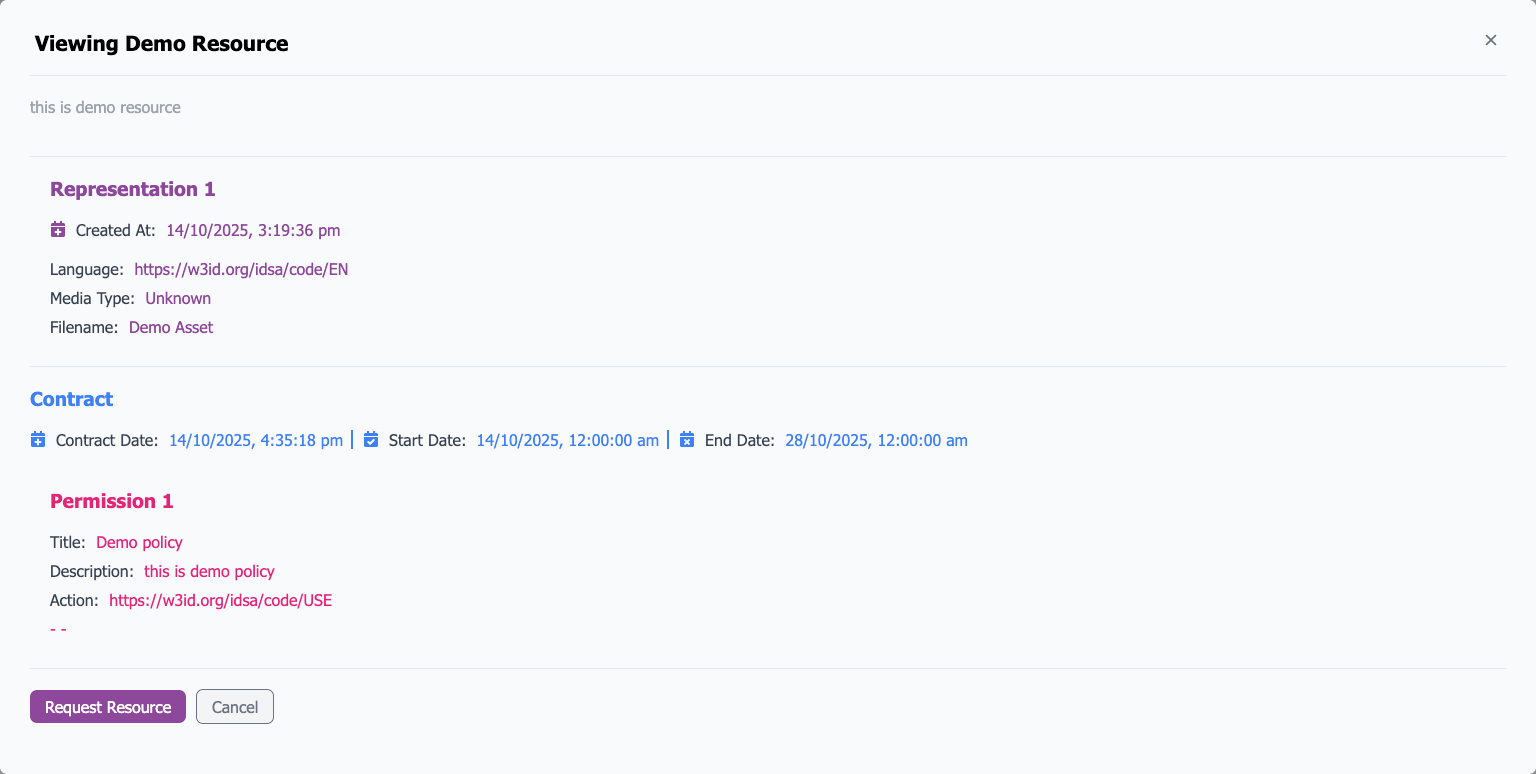
After reviewing the resource details and policies, you can submit a request to access the data. If the resource is available for request (i.e. is not expired, is within the contract date range, has rules allowing you to consume the data, and is not from RDA), a Request button will appear at the bottom of the dialog.
Click the Request button to indicate you accept the contract conditions of the chosen data offer. The dashboard will handle sending the request to the provider connector and display a notification with the outcome.
Successful requests will appear in Data Requests, with the contract being recorded in the Agreements page.
-
Download the Offer’s Data
Once a request has been approved, you can download the data. Navigate to the Data Requests page and click the View button in the Actions column for your request. This will open a popup window displaying the data request details and any associated assets (representations).
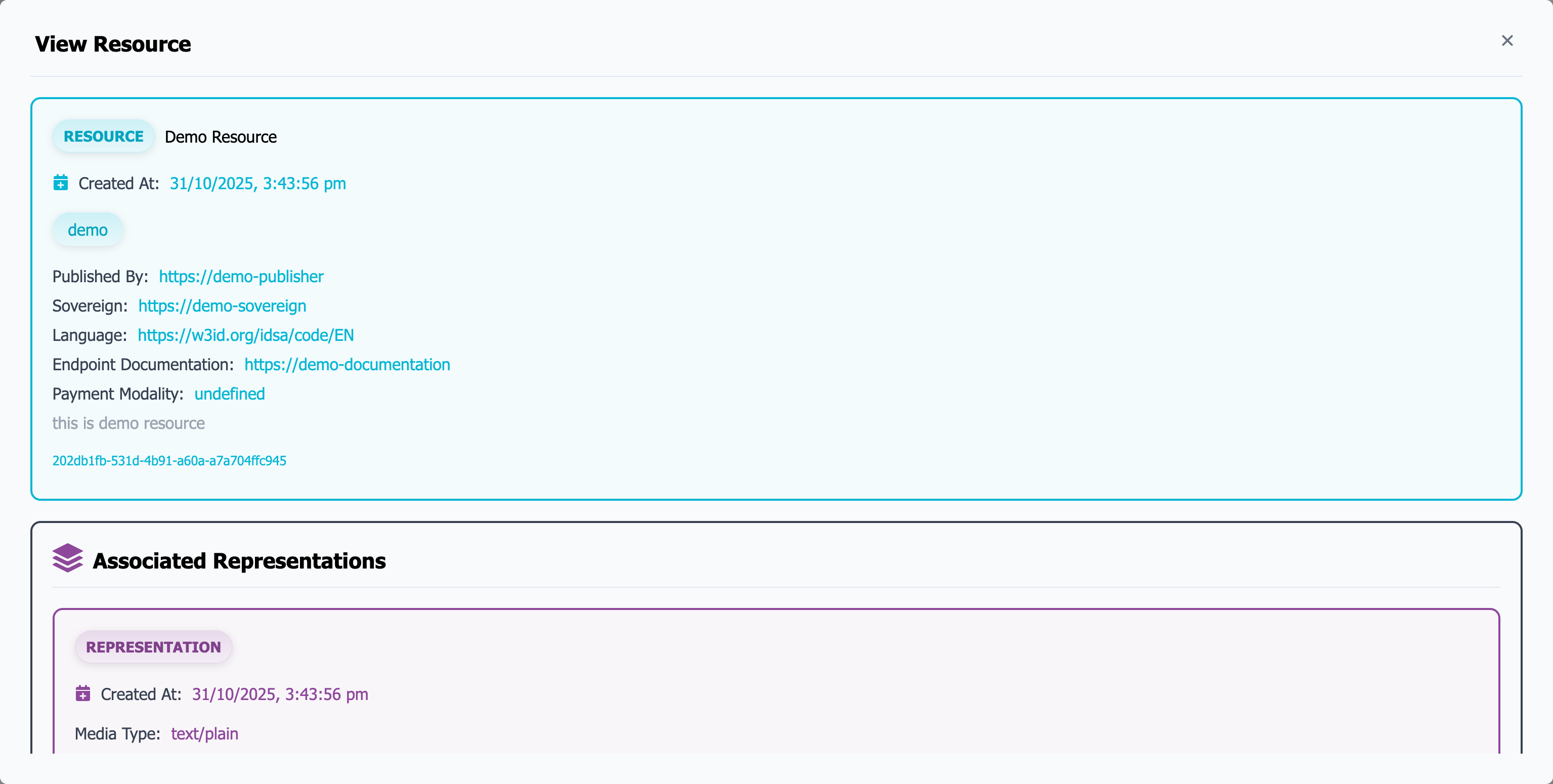
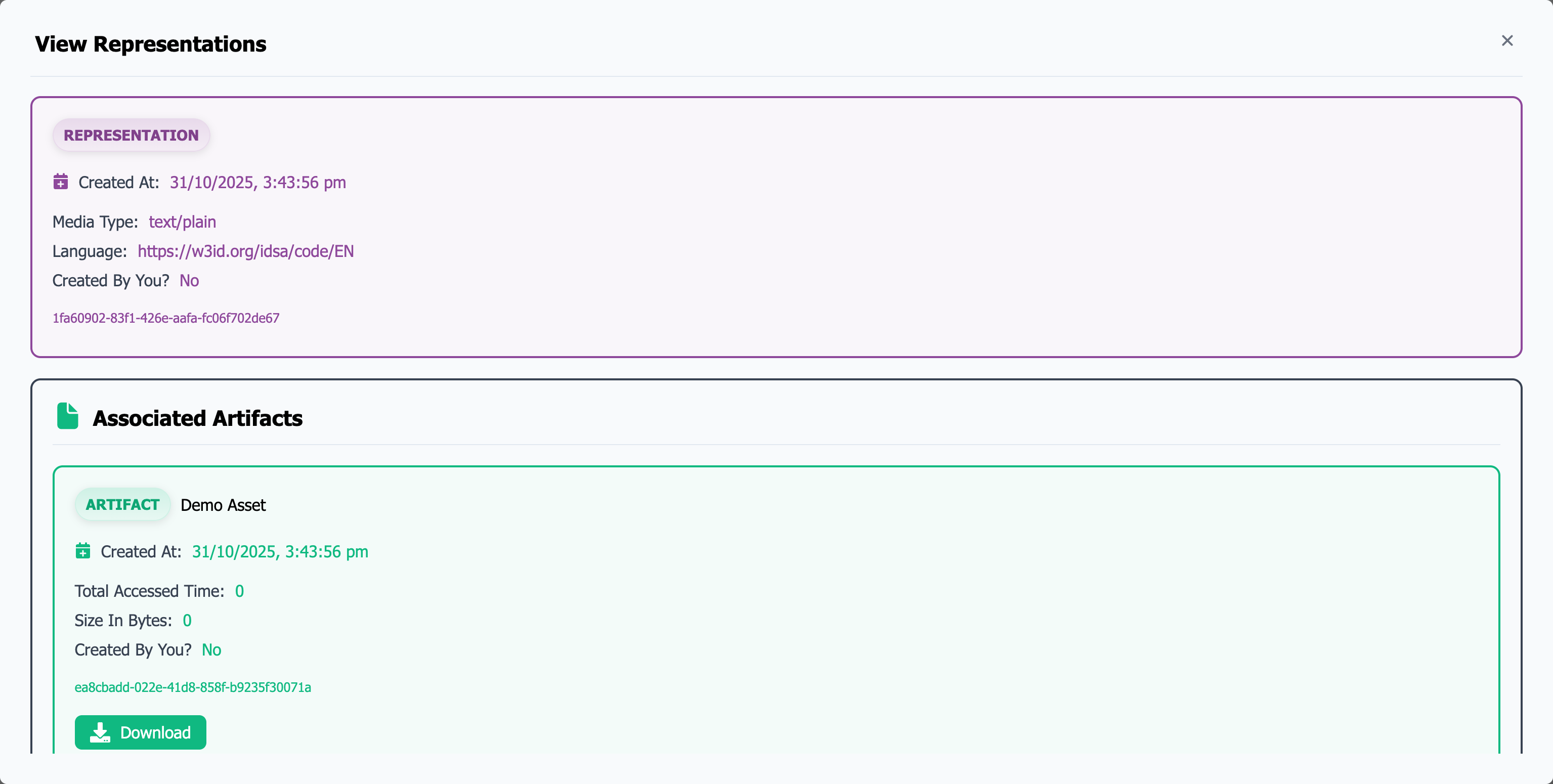
Click on the representation belonging to the dataset you want to download. Another popup window showing the representation details and its associated artifact will appear. You can then download the requested data using the download button. More information is available in the View Asset documentation.
Alternative Procedure
You can also download artifacts directly from the Agreements page by clicking the View button for the latest agreement, and locating its associated artifact.