3.2.11 Settings
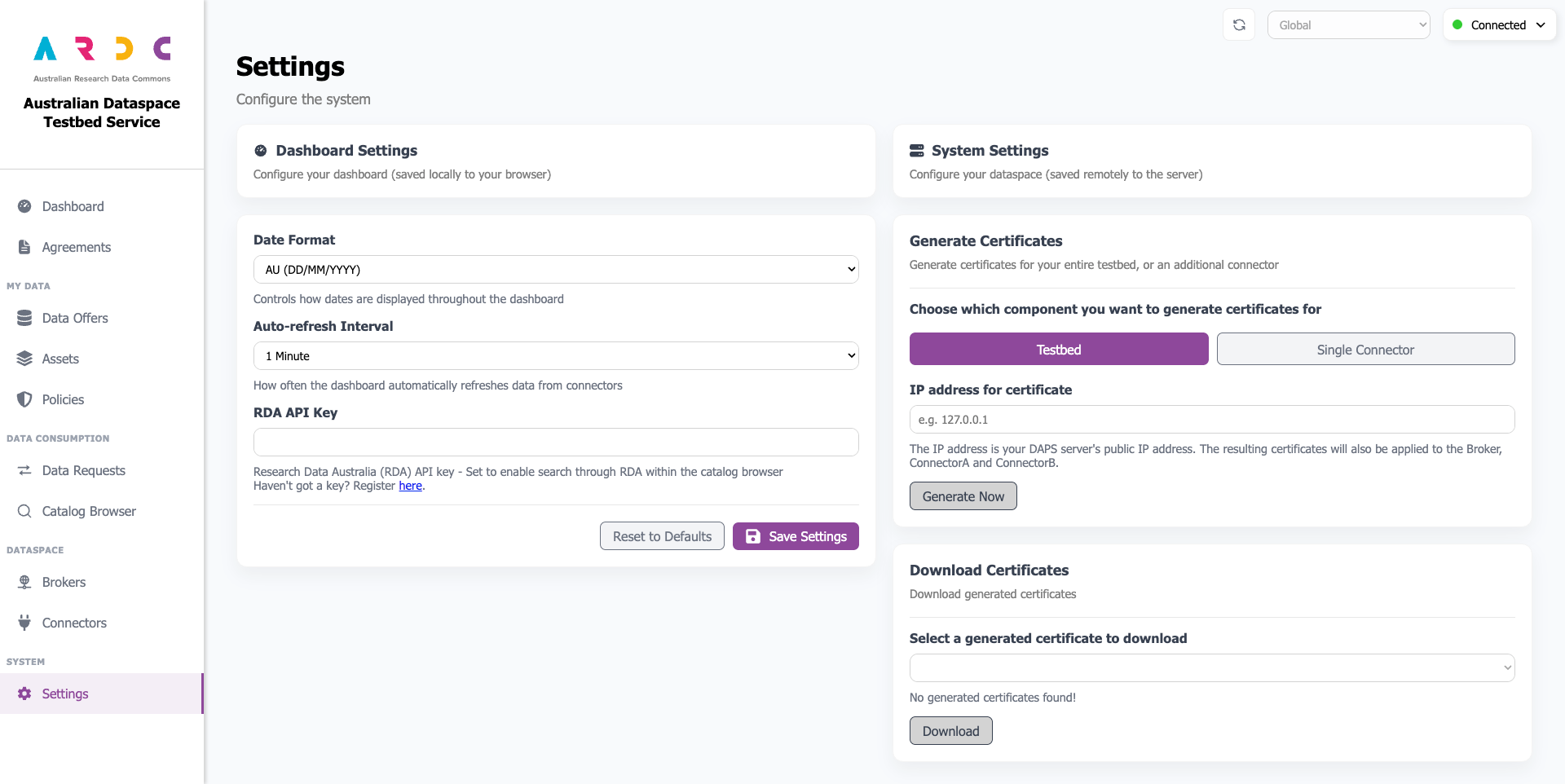
The Settings page allows you to adjust dashboard behaviour settings in your browser and configure the backend server itself. Below is an overview of the dashboard settings page:
Dashboard Settings
The dashboard settings allow a user to configure behaviour that applies only in your browser. You can configure the date format, auto-reload interval for retrieving data, and set the RDA API key for use in the catalog browser.
System Settings
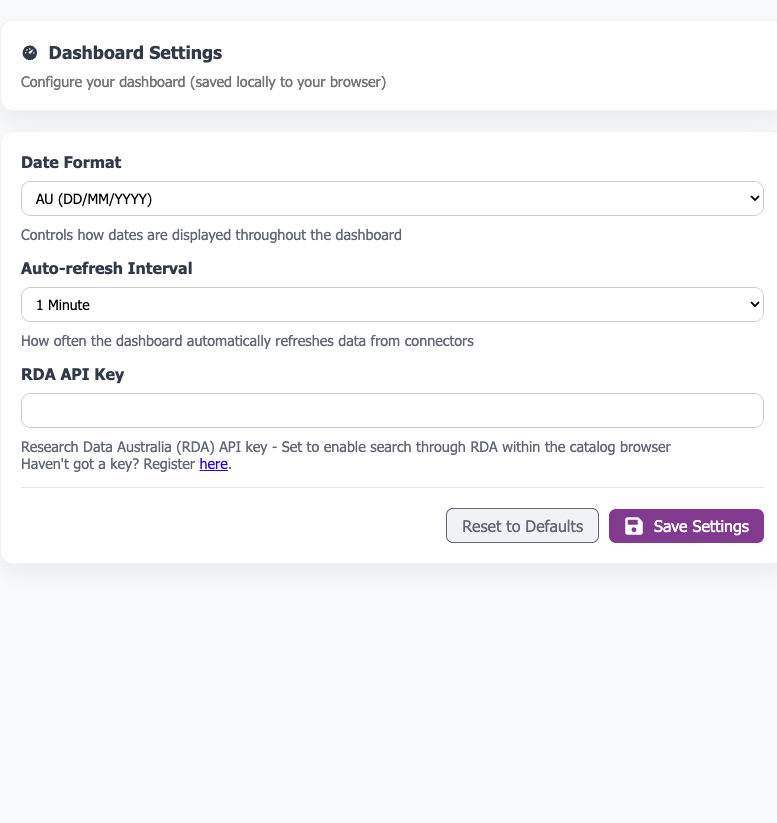
The system settings section allows you to configure backend settings and restart services if required. Available system services vary based on your dataspace type—either a full testbed or a standalone connector.
Full Testbed
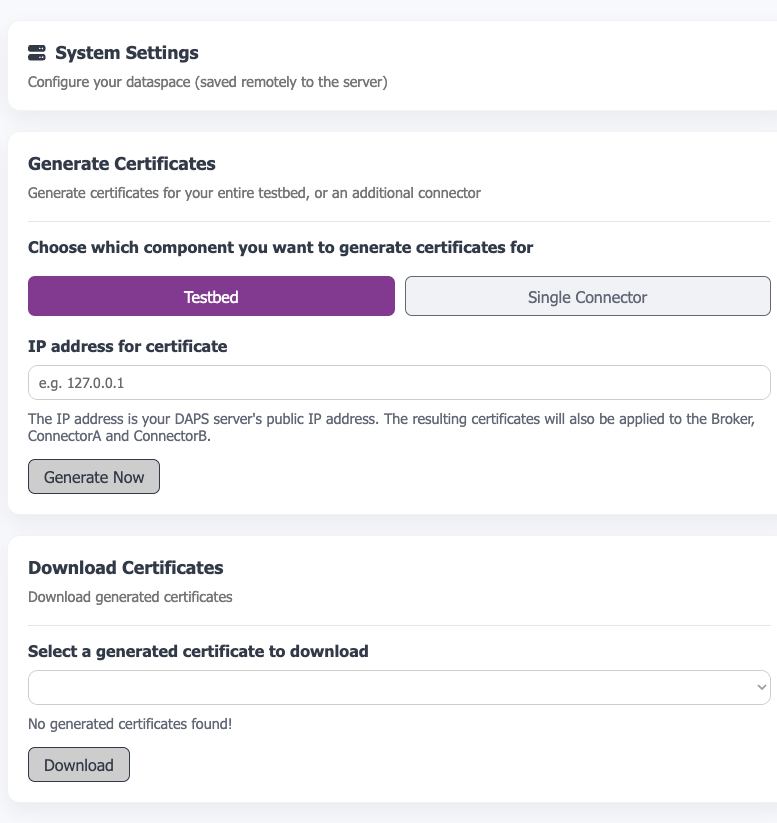
In a full testbed, the system settings section allows you to generate certificates for a full testbed or standalone connector, and download certificates you have created.
Generate Certificates for Full Testbed
You should regenerate your connector’s certificates immediately after deployment. The built-in certificates won’t match your server’s address, so while the connector can run normally for localhost (inside your testbed), it won’t be able to connect to other connectors on different machines.
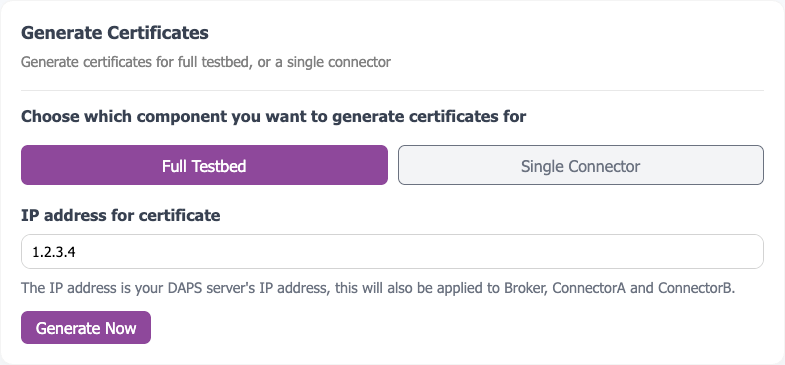
To renew certificates including CA, DAPS, Broker, ConnectorA, and ConnectorB, enter your instance’s IP address and click Generate Now. A confirmation page will appear—click Continue to proceed. Once started, you must wait for the process to complete.
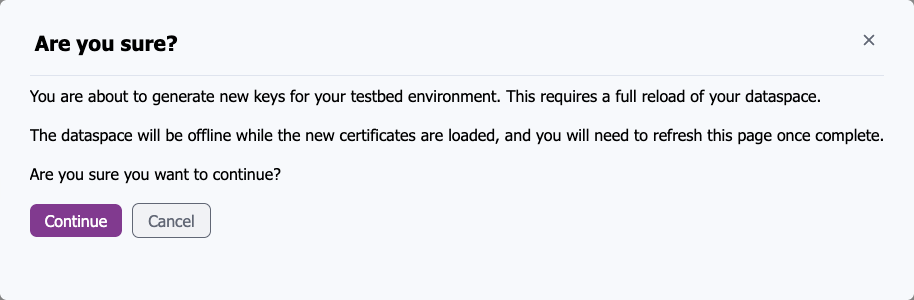
After the new certificates are generated, a page will prompt you to reload your dashboard.
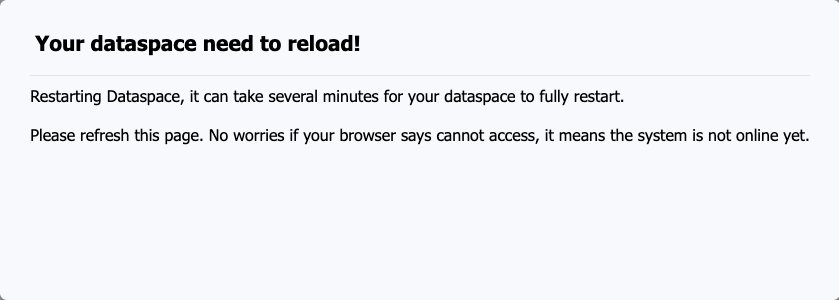
It is normal for the reload to take 1-2 minutes when using the new self-signed certificates. You may see messages like “page cannot load,” “the page is insecure,” or “502 Internal Server Error.” Wait and refresh until the dashboard loads.
Generate Certificates for a Standalone Connector
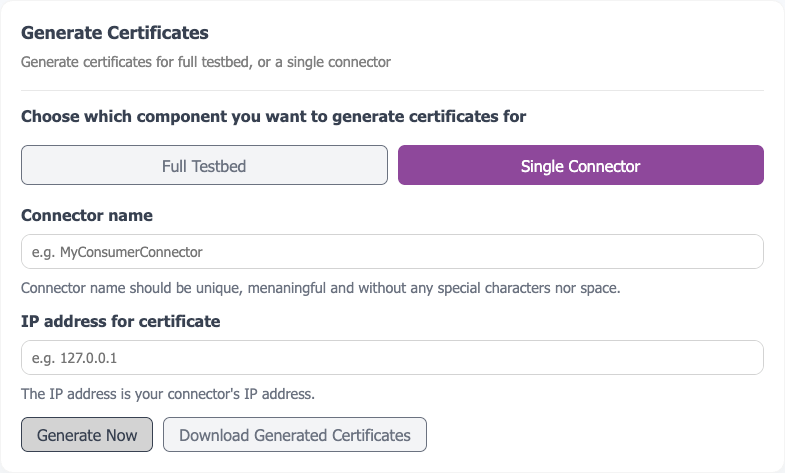
To generate certificates for a standalone connector, switch to the Single Connector tab under the Generate Certificates section.
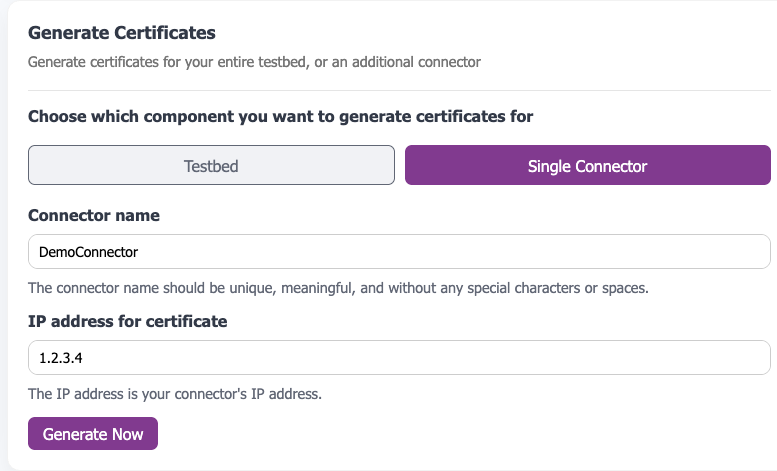
Enter the connector name and IP address, then click Generate Now. A confirmation page will appear.
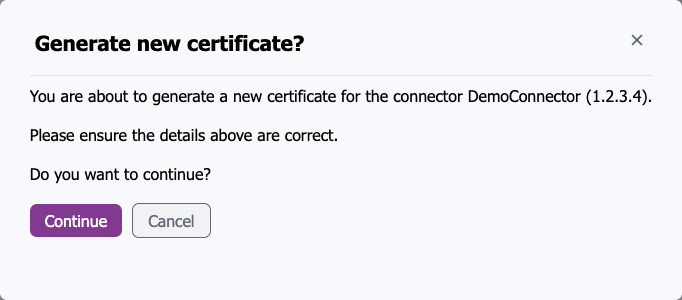
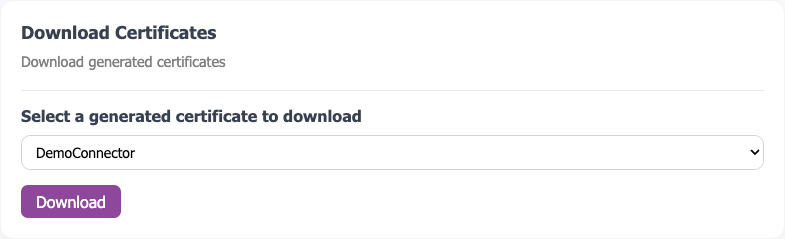
Once generated, you can download it using the Download Generated Certificates button in the same section, or select the certificate you just generated from the Download Certificates section.
Download Generated Certificates
To download generated certificates, navigate to the Download Certificates section. Select the certificate you want to download from the list and click the Download button. This downloads a zip file containing all necessary keys for a standalone connector.
Standalone Connector
In a standalone connector, the system settings section allows you to upload certificates to your connector server and point your server to the central DAPS.
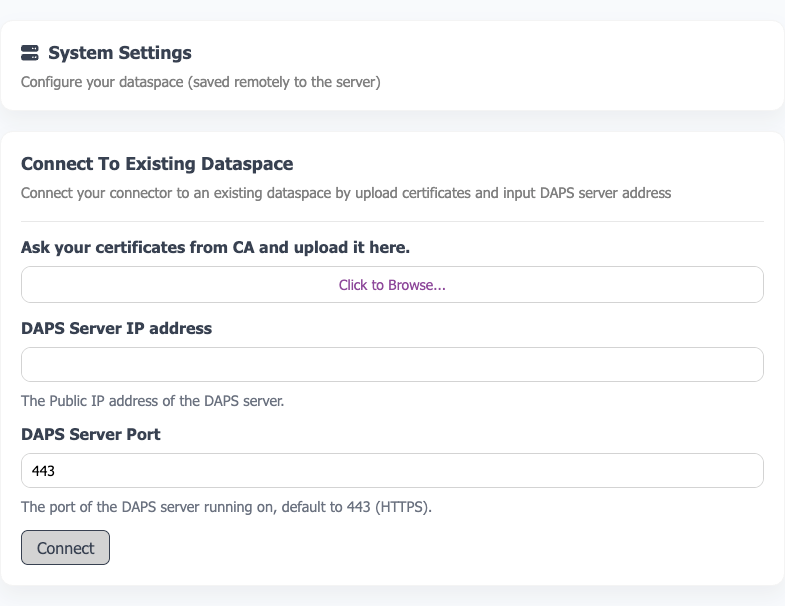
Upload a zip file generated by a full testbed (refer to Generate Certificates for a Standalone Connector), and enter the IP address of your DAPS. After completing the form, click the Connect button. The backend server will upload the provided certificates. You will be prompted to refresh the page, and the dashboard and connector will go offline briefly while the new certificates are loaded. You may see the insecure connection warning again, as changing certificates modifies your server’s identity.